

How to adjust the sound in Windows
Are you having sound problems on your Windows computer? Don’t panic, adjusting Windows sound isn’t as complicated as it seems. With a few simple tips, you can improve your audio experience, whether you’re listening to music, watching movies, or playing video games. Here’s a complete guide to help you understand “How to adjust Windows sound.”
Sommary
- Windows sound settings
- Adjust the main volume
- Adjust application volume
- Solving sound problems
- Berclet the audio mixer
1. Access your Windows settings
The first step to learning how to adjust Windows sound is to access the sound settings. To do this, click the speaker icon in the taskbar, usually located in the bottom right corner of your screen. Then, select “Open sound settings.” You will be taken to the settings page where you can adjust various aspects of your computer’s audio.
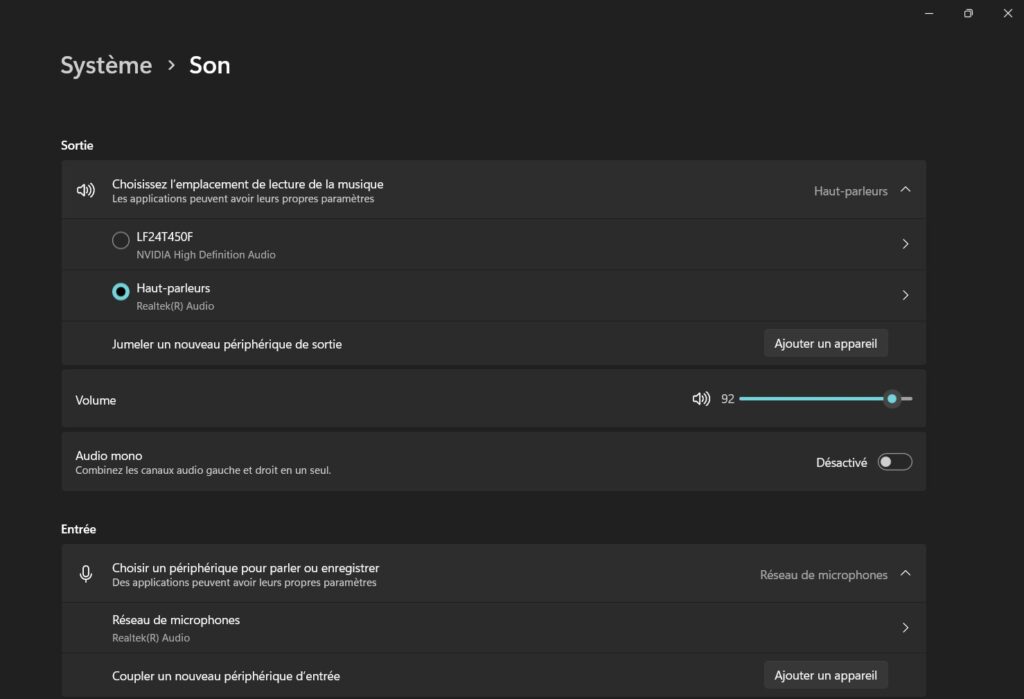
2. Adjust the master volume and playback devices
In the sound settings, you’ll find an option to adjust the master volume. Simply drag the slider to increase or decrease your computer’s overall volume. Below, you’ll see a list of playback devices, such as your speakers, headphones, or other connected audio devices. Select the device you’re using and make sure it’s set as the default to ensure sound is output through that device.

Try Berclet now!
Berclet, your all-in-one audio solution
3. Adjust the volume of specific applications
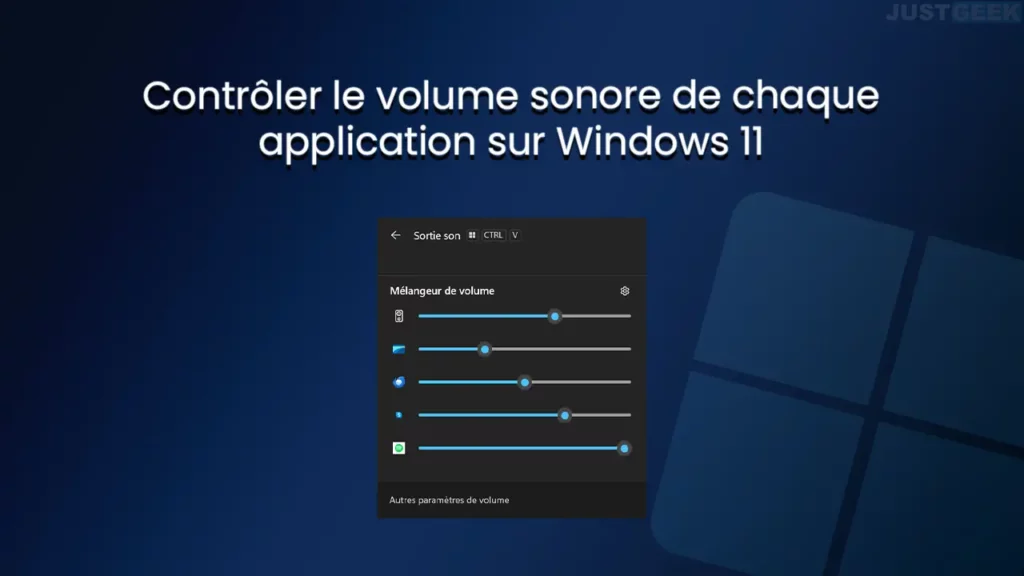
A very handy Windows feature is the ability to adjust the volume of specific applications. Click on “App and device volume options.” Here, you’ll see a list of all the applications currently in use and their respective volume levels. You can adjust the volume of each application individually, which is ideal if you want to, for example, lower the volume of your browser while keeping your music at full volume.
Source : JustGeek
4. Solve the problems of its currents
Sometimes, despite your best efforts, you may encounter sound problems. Here are some common solutions:
Background noise or crackling: Try changing the USB port for your audio devices or disabling audio enhancements in the playback device properties.
No sound at all: Check that the volume is not muted (speaker icon with a line through it) and that your devices are properly connected.
Poor sound quality: Make sure your audio drivers are up to date. You can do this by going to Device Manager, finding your sound card, and selecting “Update driver”.
Find an alternative device to adjust Windows sound
Berclet is an advanced French hardware solution for application-based audio mixing. It allows you to lower the volume of a specific application without interrupting your work. Unlike other solutions, Berclet simplifies this process. You can easily adjust sound settings by simply selecting your desired application or output device with a single click, without needing to return to the Windows desktop. Then, simply drag the slider to instantly change the volume. This allows you to continue your work undisturbed.
In addition, Berclet includes an automated volume slider feature. After adjusting the volume of Google, for example, and switching to another application, the volume automatically readjusts. The smart motorized sliders remember the level you previously set.

Conclusion: Enjoy your audio to the fullest on Windows
By following these simple steps, you can easily adjust Windows sound and enhance your audio experience. Whether you’re a music lover, a movie buff, or a gamer, well-tuned sound can make all the difference. Take some time to explore the available options and don’t hesitate to experiment to find the settings that work best for you. Now, put on your favorite music and enjoy crisp, clear sound!
Keep your focus on your part, Berclet will take care of the sound.
Berclet gives you complete control over the volume of your applications, without leaving your game.
